Declines, exceptions, and overdue items
Last reviewed: 2026-05-24
Most assignments end in a sign-off (see Sign-off and magic links). When a policy does not apply to you — wrong role, a conflict, or the document is wrong — Accedo's exception path is the Decline action: a first-class, audited "no" that closes the assignment without you falsely signing.
Filing an exception (declining)
Open the signing page through the magic link in your email, or from My Policies. The Decline button sits next to I Acknowledge and Sign as an equal sibling — a legitimate choice, not an error path.
- Click Decline. A modal opens.
- Optionally, type a reason (up to 500 characters) — for example, "Role does not apply" or "Conflict with my employment contract." The field is optional, but a short note makes the admin's review much easier.
- Click Submit Decline. You will see a terminal "You have declined this assignment" screen confirming that your admin has been notified, and a Download Certificate button — the decline-equivalent of the signed certificate, carrying your reason instead of consent.
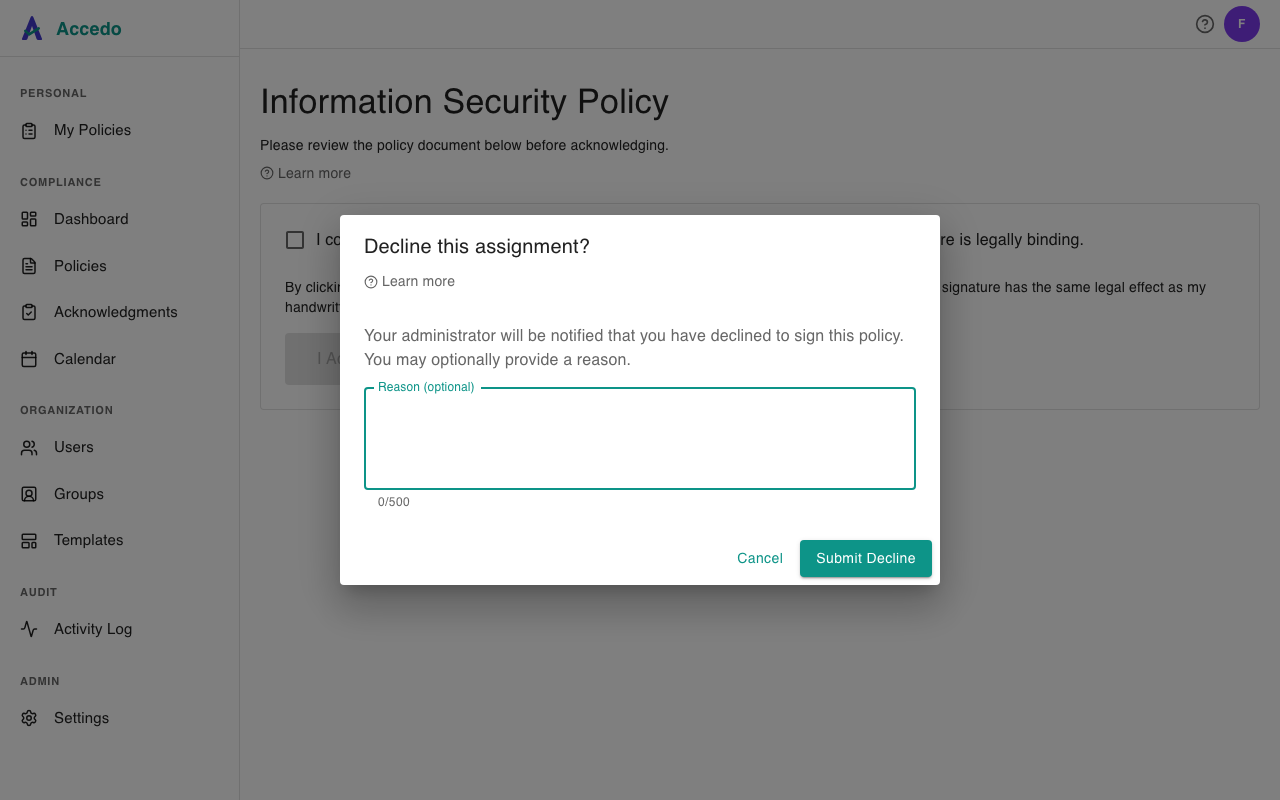
The assignment is now in a terminal declined state. Returning to the magic link later lands on the same confirmation screen, and the assignment appears under a Declined section in My Policies.
Admin review
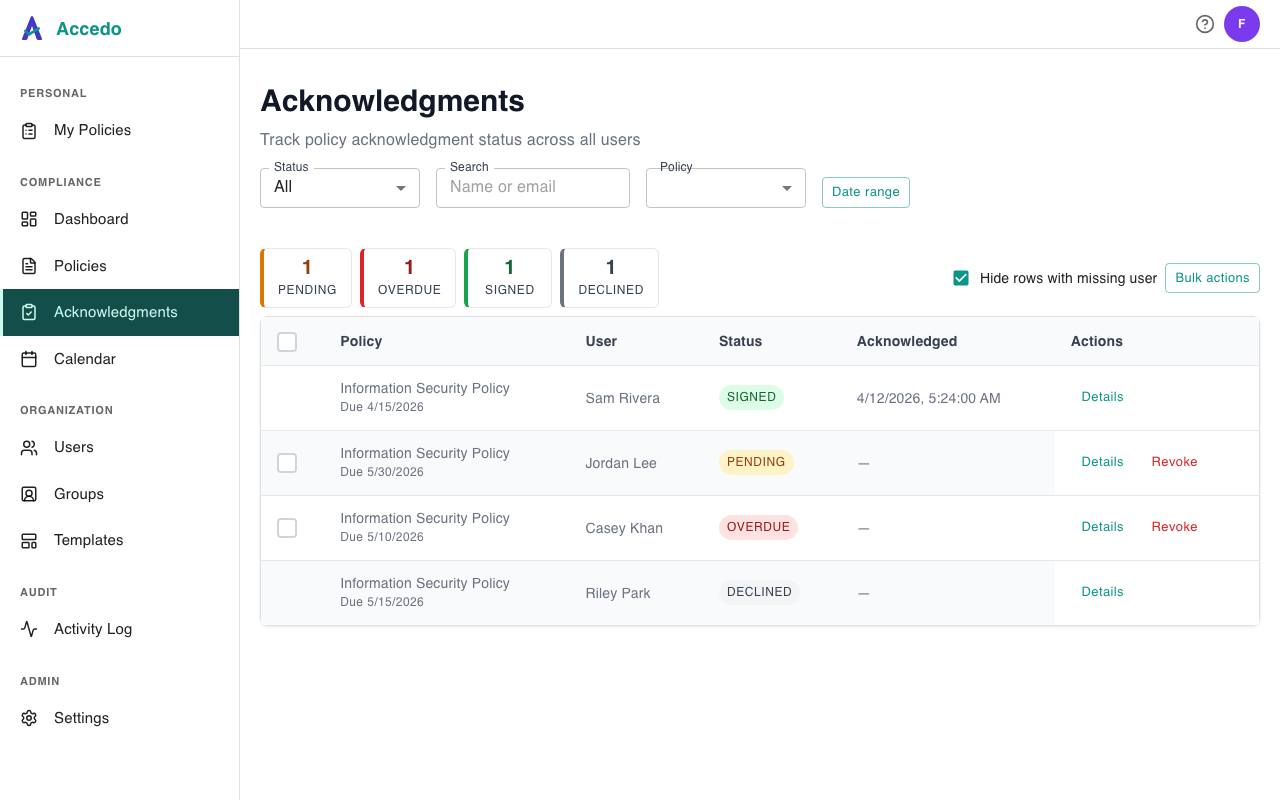
The moment you submit, every admin on your workspace receives an email titled "{your name} declined the policy {policy title}", with your reason and a link to Acknowledgments. There the row shows a grey DECLINED badge alongside the sign-time details — timestamp, IP, user agent, and reason. Admins do not "approve" or "reject" the decline itself; the resolution happens offline (a conversation, a policy correction, a role change). If the underlying issue is resolved, an admin can re-assign the policy to you, which creates a fresh pending assignment with its own signing link.
Overdue items
A pending assignment becomes overdue once its due date passes — the card on My Policies gains a red Overdue chip, and the row appears in the admin's Overdue filter. Overdue is not a decline; you can still sign or decline normally. If you cannot do either, file a decline with a reason so the assignment is resolved rather than left rotting in the pending bucket.